
Building a Zero-Dependency Title Badge Generator in HTML5 Canvas
How to engineer a single-file, client-side canvas tool that composites high-contrast typography badges onto technical blog images with interactive drag positioning and native clipboard I/O.
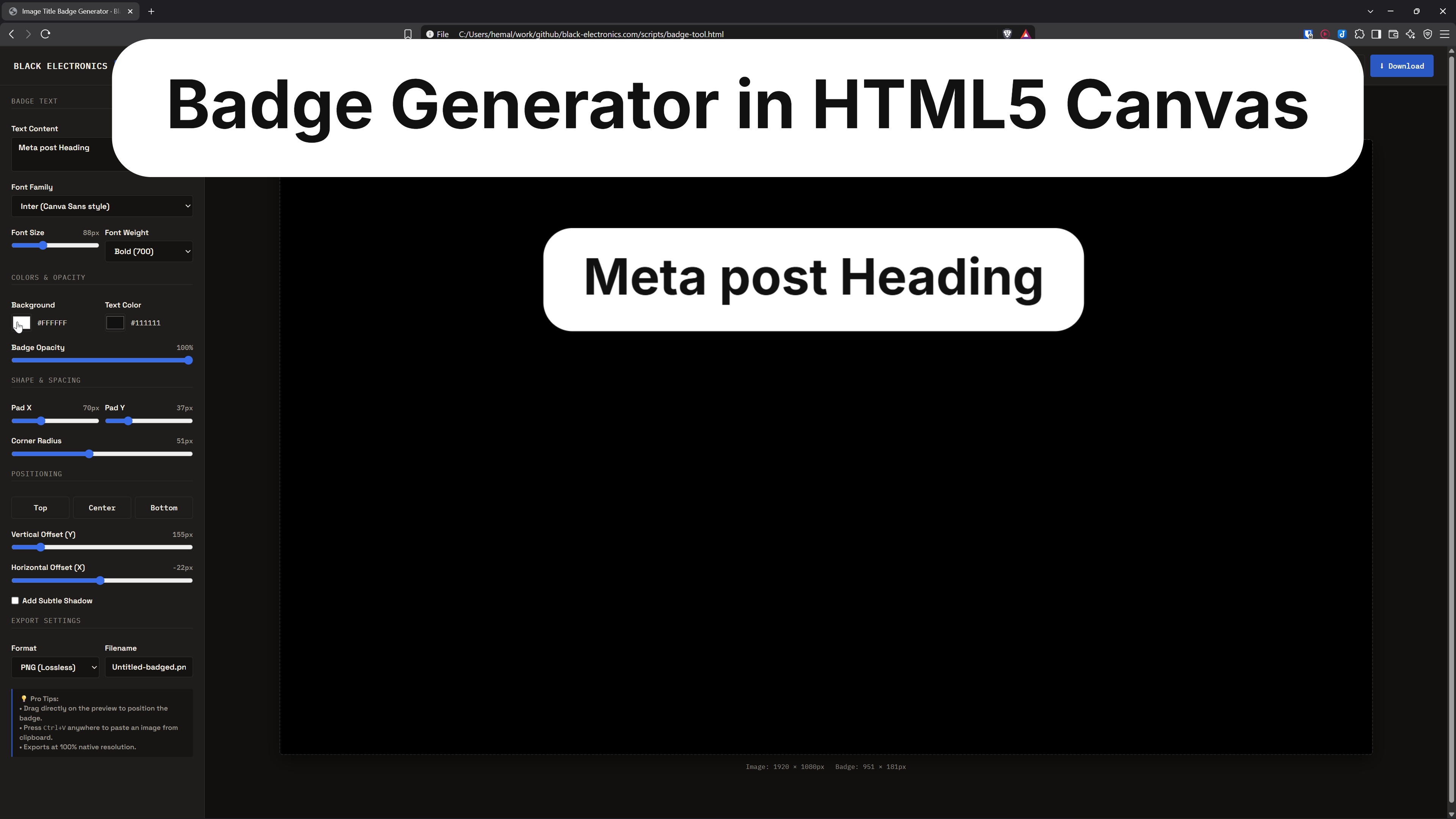
Technical hardware and electronics blogs face a consistent presentation hurdle: cover images. Workbench photos, oscilloscope screenshots, KiCad schematics, and 3D CAD renders have busy, textured backgrounds with high local contrast. Placing bare text or standard drop shadows over them often results in illegible typography across different display sizes.
Heavy graphic design suites like Canva, Figma, or Photoshop solve this with white rounded-rectangle title pills, but opening an external cloud workspace, uploading an asset, adjusting text, and re-exporting introduces unnecessary friction to a writing pipeline.
We built a zero-dependency, single-file HTML5 Canvas tool that runs entirely client-side. You paste or drop an image, type your title, drag the badge to position it, and copy or download the result at 100% full native resolution.
Below is the live tool running directly in this post, followed by a technical breakdown of the canvas geometry, coordinate mapping, and browser APIs that power it.
Live Interactive Tool
1. The Anatomy of a High-Contrast Title Badge
When photographing hardware prototypes on an anti-static mat or capturing complex routing in an EDA tool, background luminance fluctuates wildly between dark solder masks and bright silkscreen or LEDs.
The pill badge design (popularized by Canva Sans templates, seen below on our UNIHIKER post cover) provides a high-contrast boundary layer:
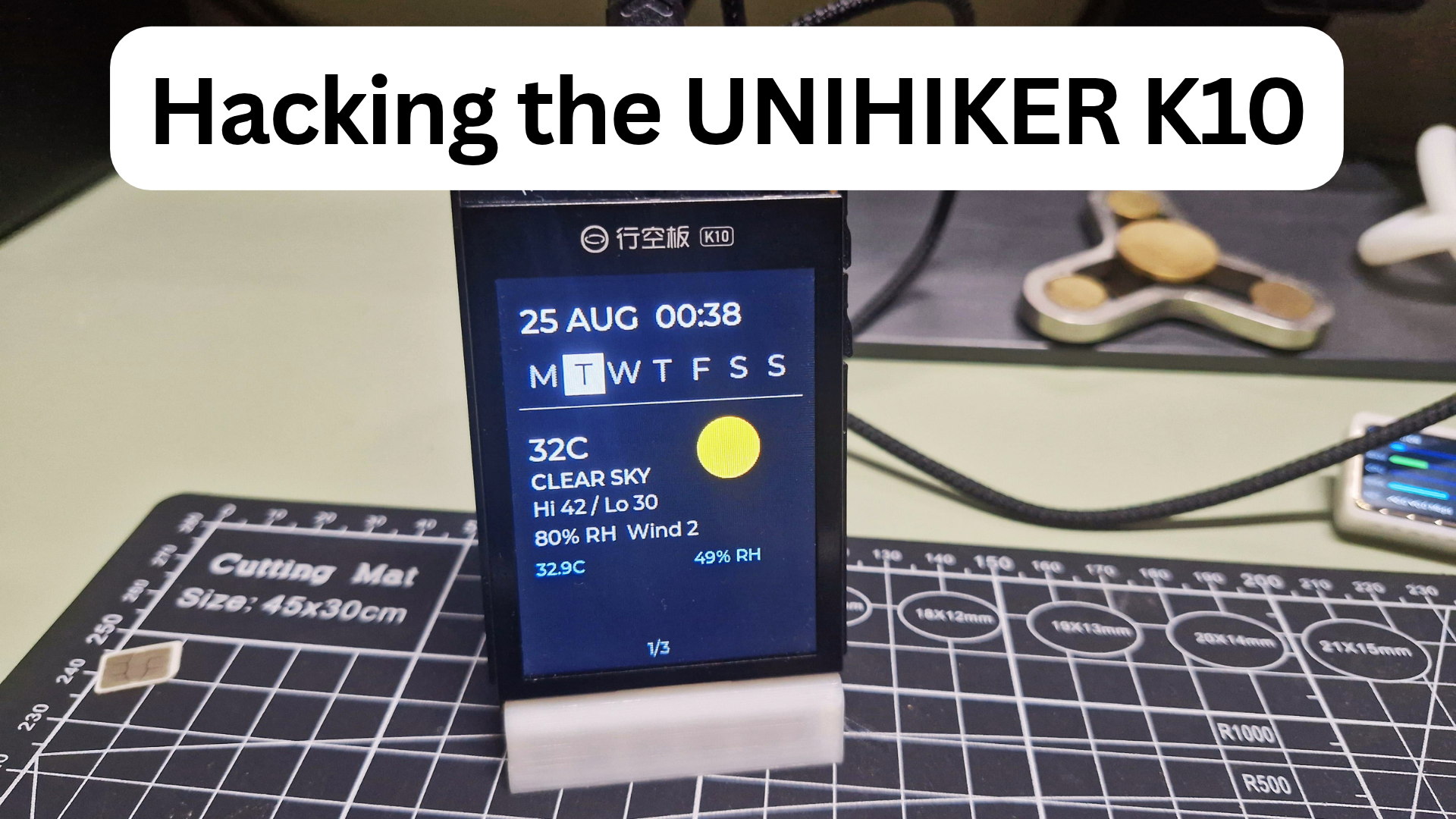
To make badges look balanced across varied photo resolutions—from an 800 × 600 crop up to a 4000 × 3000 camera snapshot—the badge geometry scales proportionally to the base image:
\[ \begin{aligned} \text{Font Size} &= \max\left(24,\; \operatorname{round}(W_{\text{image}} \times 0.046)\right) \\ \text{Padding}_X &= \operatorname{round}(\text{Font Size} \times 0.8) \\ \text{Padding}_Y &= \operatorname{round}(\text{Font Size} \times 0.42) \\ \text{Radius} &= \operatorname{round}(\text{Font Size} \times 0.58) \\ \text{Margin}_Y &= \operatorname{round}(H_{\text{image}} \times 0.04) \end{aligned} \]On a standard 1920 × 1080 cover image, this yields an 88px bold headline with 70px horizontal padding and a 50px rounded corner—matching the pill proportions without manual tweaking.
2. Accurate Coordinate Mapping for Canvas Dragging
Allowing the user to drag the title badge directly over the canvas requires mapping screen pointer coordinates to the internal canvas pixel grid.
Because CSS sets the canvas display width responsively (e.g., max-width: 100%; max-height: 80vh), the displayed client rectangle differs significantly from the native bitmap buffer (canvas.width and canvas.height):
Screen Space (CSS Pixels)                     Bitmap Space (Canvas Pixels)
+-----------------------------------+         +-------------------------------------------------------+
|  getBoundingClientRect()          |         |  canvas.width = 1920, canvas.height = 1080            |
|  width: 960px, height: 540px      |  ====>  |                                                       |
|  (e.clientX, e.clientY)           |         |  scaleX = 1920 / 960 = 2.0                            |
|                                   |         |  scaleY = 1080 / 540 = 2.0                            |
+-----------------------------------+         +-------------------------------------------------------+
To calculate the hit test and drag offset accurately regardless of screen scaling or device pixel ratio:
function getCanvasCoordinates(e) {
  const rect = canvas.getBoundingClientRect();
  const scaleX = canvas.width / rect.width;
  const scaleY = canvas.height / rect.height;
  return {
    x: (e.clientX - rect.left) * scaleX,
    y: (e.clientY - rect.top) * scaleY
  };
}

function isPointInBadge(p) {
  return p.x >= badgeRect.x && p.x <= badgeRect.x + badgeRect.width &&
         p.y >= badgeRect.y && p.y <= badgeRect.y + badgeRect.height;
}
During mousedown, if isPointInBadge() returns true, we lock dragStart and record the initial slider offsets. Mouse movement deltas are then clamped within canvas boundaries and fed directly into the rendering loop.
3. Multiline Text Measurement and Pill Geometry
Rendering dynamic multiline text inside a rounded pill requires measuring the widest line to determine bounding box width, while line count determines total height:
// Measure maximum text line width
const lines = text.split('\n');
let maxLineWidth = 0;
lines.forEach(line => {
  const m = ctx.measureText(line);
  if (m.width > maxLineWidth) maxLineWidth = m.width;
});

const lineHeight = fSize * 1.22;
const textBlockHeight = lines.length * lineHeight;
const bWidth = maxLineWidth + pX * 2;
const bHeight = textBlockHeight + pY * 2;
const r = Math.min(radius, bHeight / 2);
For rounded rectangle rendering, we check for modern browser CanvasRenderingContext2D.roundRect support, with an arcTo geometric fallback for legacy rendering engines:
function drawRoundedRect(ctx, x, y, width, height, radius) {
  ctx.beginPath();
  if (ctx.roundRect) {
    ctx.roundRect(x, y, width, height, radius);
  } else {
    const r = Math.min(radius, width / 2, height / 2);
    ctx.moveTo(x + r, y);
    ctx.arcTo(x + width, y, x + width, y + height, r);
    ctx.arcTo(x + width, y + height, x, y + height, r);
    ctx.arcTo(x, y + height, x, y, r);
    ctx.arcTo(x, y + width, y, r);
    ctx.closePath();
  }
}
4. Friction-Free Clipboard I/O
A core productivity feature of desktop design tools is pasting images straight from the clipboard (Win + Shift + S or print screen) and copying results back out without touching the filesystem.
Inbound Clipboard Paste
We listen on the global paste event, extract the raw File blob from clipboardData.items, and pass it to an Image object via FileReader:
window.addEventListener('paste', function(e) {
  const items = (e.clipboardData || e.originalEvent.clipboardData).items;
  for (let i = 0; i < items.length; i++) {
    if (items[i].type.indexOf('image') !== -1) {
      const blob = items[i].getAsFile();
      const reader = new FileReader();
      reader.onload = function(evt) {
        loadImage(evt.target.result, 'clipboard-image.png');
      };
      reader.readAsDataURL(blob);
      break;
    }
  }
});
Outbound Clipboard Write
When copying the final composited graphic, canvas.toBlob() converts the canvas into an asynchronous PNG blob, which is passed into the modern navigator.clipboard.write API:
canvas.toBlob(function(blob) {
  if (!blob) return;
  navigator.clipboard.write([
    new ClipboardItem({ 'image/png': blob })
  ]).then(function() {
    copyBtn.innerText = '✓ Copied!';
    setTimeout(() => { copyBtn.innerText = '📋 Copy Image'; }, 1800);
  });
}, 'image/png');
This makes it possible to take a screen grab of an oscilloscope or 3D render, press Ctrl+V in the badge tool, type the title, click Copy Image, and paste directly into a markdown document or CMS.
5. Performance and Architecture Summary
Because the tool is written in pure vanilla HTML5, CSS, and JavaScript with zero build steps or npm runtime dependencies:
| Metric | Measurement |
|---|---|
| Download Size | ~28 KB (single HTML file) |
| External Dependencies | Google Fonts (Inter, Space Grotesk) |
| Processing Latency | Instantaneous (< 5 ms canvas redraw at 4K) |
| Data Privacy | 100% client-side (no image leaves your browser) |
| Export Fidelity | Native 1:1 image resolution (PNG lossless / JPEG 95%) |
The standalone version of the tool is hosted directly on this site at /tools/badge-tool.html and can be saved locally for completely offline use.